LoadBear
A desktop gadget that shows you what is overloading your machine, not merely that it is busy.
Docker containers, dev servers, builds, IDE indexers, browsers and local models all run at once, and the first sign of trouble is usually that everything feels slow. By then you are guessing at the cause. LoadBear measures how long work spends waiting, names the process group responsible, and judges it against limits the vendor published.
Version 0.1.0 · 2.1 MB · Windows 10 or 11, x86-64 · Apache-2.0
SHA-256 4d4978364d54d52bf6990cbd760e54b7e47bb58056e62b10d27e9f14599cee74
One window, three shapes. It starts as a full panel, folds to a strip you keep on top of your work, and shrinks again until it fits on the taskbar. Nothing is measured differently in any of them. The smaller shapes simply stop explaining themselves.
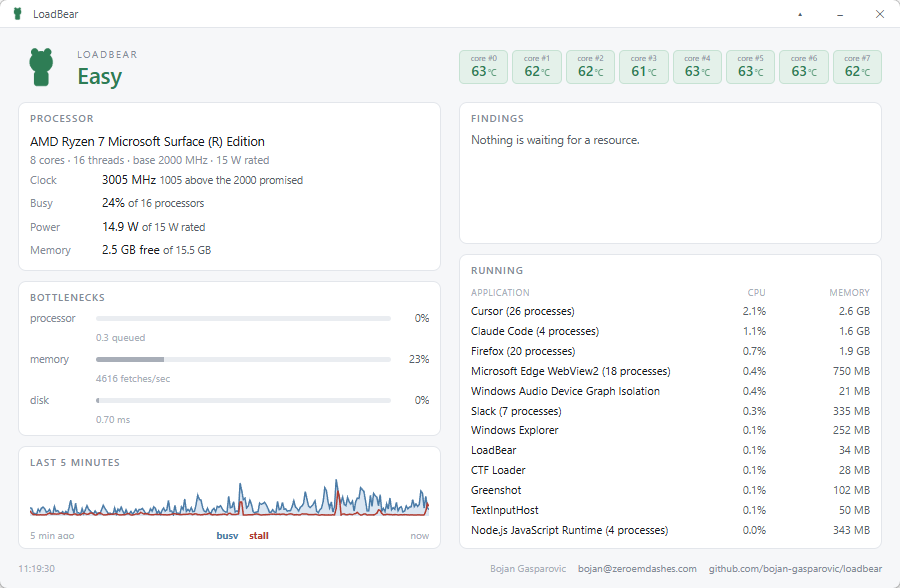
The full panel, and where you go once something feels wrong. A single word at the top says how hard the machine is working right now. Under it sits the processor and what it is actually doing, how long work is waiting on the processor, memory and disk, the last five minutes drawn as a trace, and the applications responsible in order of appetite.
900 × 588
The same reading with the explanation taken away. You keep the five minute trace and the eight core temperatures, and you lose everything that needs reading rather than glancing at. It sits on top of your work without covering it, which is where it spends most of its time.

900 × 124
The bear is the verdict. LoadBear grades the machine as easy, braced or strained, and the mascot carries the grade in its posture rather than in a colour you have to learn first. Easy stands upright with a neck. Braced sinks into its shoulders. Strained has no neck left at all. Colour follows the posture, green to amber to red, but the silhouette alone is enough, which is what keeps it readable at sixteen pixels in the tray.


Braced above, strained below
Small enough to sit above the taskbar without taking a row of screen from anything else. The labels come off because there is no height left for them, so position in the grid is what tells you which core a number belongs to. A chevron brings the full panel back.

360 × 48
Everything works out of the box except per-core temperature and package power, which need ring-0 access. LoadBear ships no driver of its own. Press Enable temperature and it downloads PawnIO from its official release URL, checks the Authenticode signature, and only then runs it. PawnIO is signed, HVCI compatible, and runs sandboxed bytecode rather than exposing raw ring-0 primitives.
WinRing0, the traditional answer, sits on the Windows vulnerable driver blocklist and was never an option here. Elevation is asked for once. Decline it and everything else still works, with temperature and power reported as unavailable rather than guessed at.