zeroemdashes.com | Free session guide
From Idea to
Live Website
A complete step-by-step guide using Claude Code and the Superpowers plugin. You describe what you want. Claude builds it.
Bojan Gasparovic
zeroemdashes.com
Session: June 5, 2026
This guide uses Cloudflare for hosting and domain registration. I have no affiliation with Cloudflare. Many alternatives exist and work just as well. Use whichever provider you prefer.
Section 1
What you are building
Before the first step, here is the destination.
By the end of this guide you will have a personal website live on the internet, on your own domain name, hosted for free. You will have built it by describing what you want in plain language. You will not have written a single line of code.
The full journey looks like this:
- Brainstorm with Claude what the site is for and what goes in it.
- Plan the build together so you both know what is about to happen.
- Build the site. Claude writes the files. You review and give feedback.
- Set your style so it looks like you, not like a template.
- Publish your site on Cloudflare Pages. Your site is live immediately on a free pages.dev address.
- Buy a domain through Cloudflare Registrar. DNS is configured automatically.
- Add your domain to Cloudflare Pages so the site is live at your own address.
Each step is covered in full, including the parts that move fast during the live session.
Brainstorm your site with Claude
Before Claude builds anything, you have a conversation. This is what makes the result feel like yours.
Install the plugins
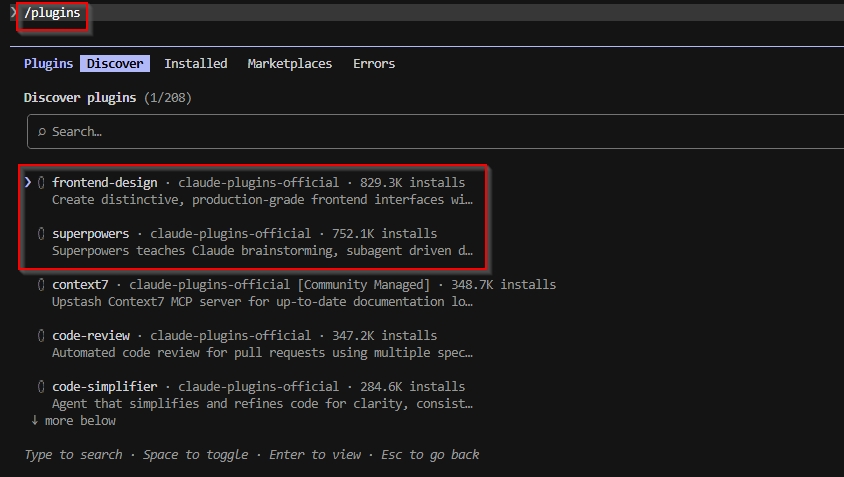
You need two plugins for this workflow. Both are free. Find them in the plugin browser inside Claude Code.
Superpowers gives Claude a structured way to work through complex tasks. Instead of a single long prompt, you have a guided conversation: Claude asks questions, you answer, and by the end you both know exactly what to build.
Frontend Design gives Claude the skills to build distinctive, production-quality visual interfaces. Without it, Claude builds functional but generic-looking sites. With it, the output looks considered and intentional.
In the chat window at the bottom of Claude Code, type /plugins and press Enter. This opens the plugin browser. Go to the Discover tab, find superpowers and frontend-design, and install both from the list.
Step 1: Answer questions one at a time
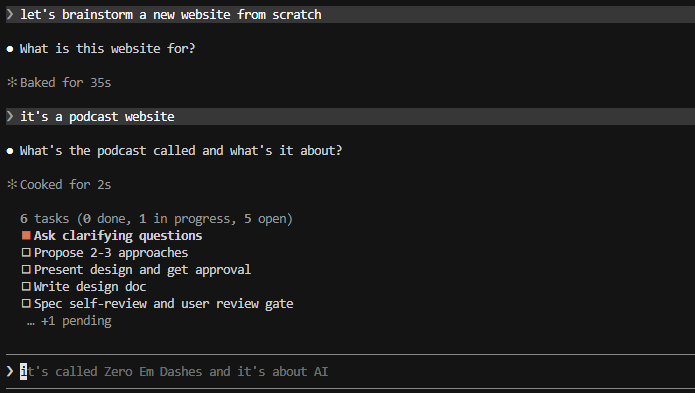
Once the plugins are installed, just tell Claude what you want to build in plain language. You do not need to run a command or invoke anything manually. Typing something like "let's brainstorm a new website from scratch" is enough. Claude picks it up and starts asking questions.
There is nothing to prepare in advance. Just answer honestly. Typical questions:
- What is this site for? Who is it for?
- What sections or pages do you want?
- What tone do you want? (professional, warm, direct, creative...)
- Is there anything you definitely want to include or avoid?
Tip
If a question does not feel right or the direction is going somewhere you do not want, just say so. This is a conversation, not a form. Push back, redirect, or ask Claude to rephrase. It adapts.
Step 2: Choose an approach
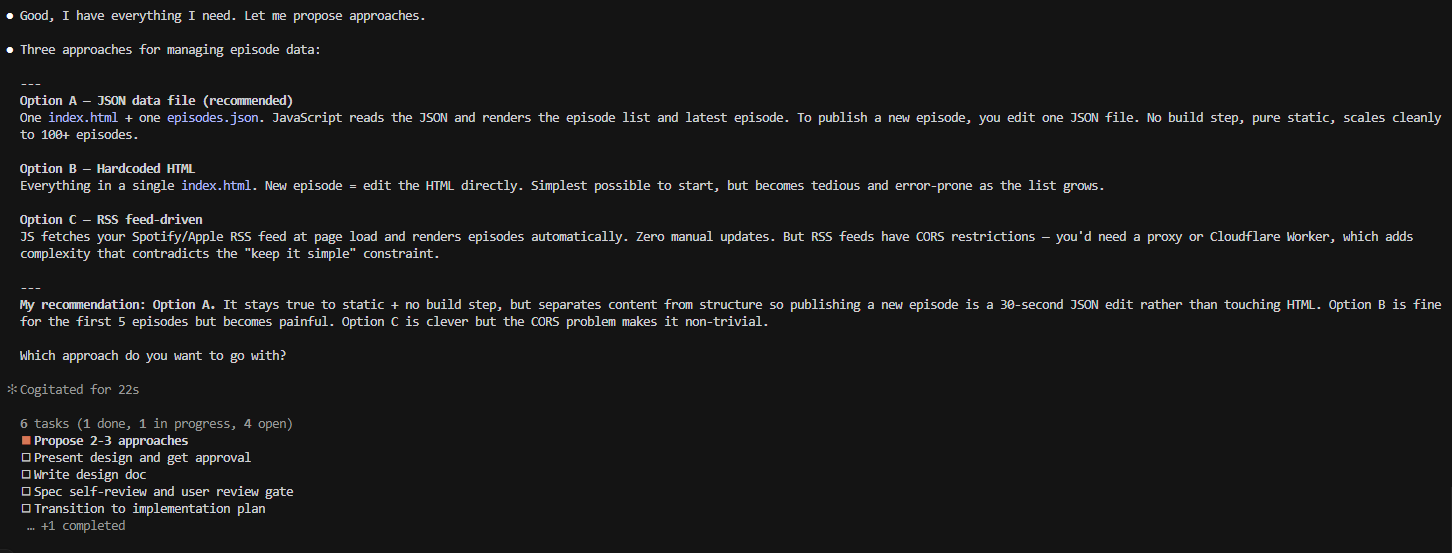
Once Claude has enough information, it will propose two or three different ways to build the site. Each option comes with a trade-off and a recommendation. Read them, pick the one that fits, and Claude moves forward with it.
Step 3: Approve the design
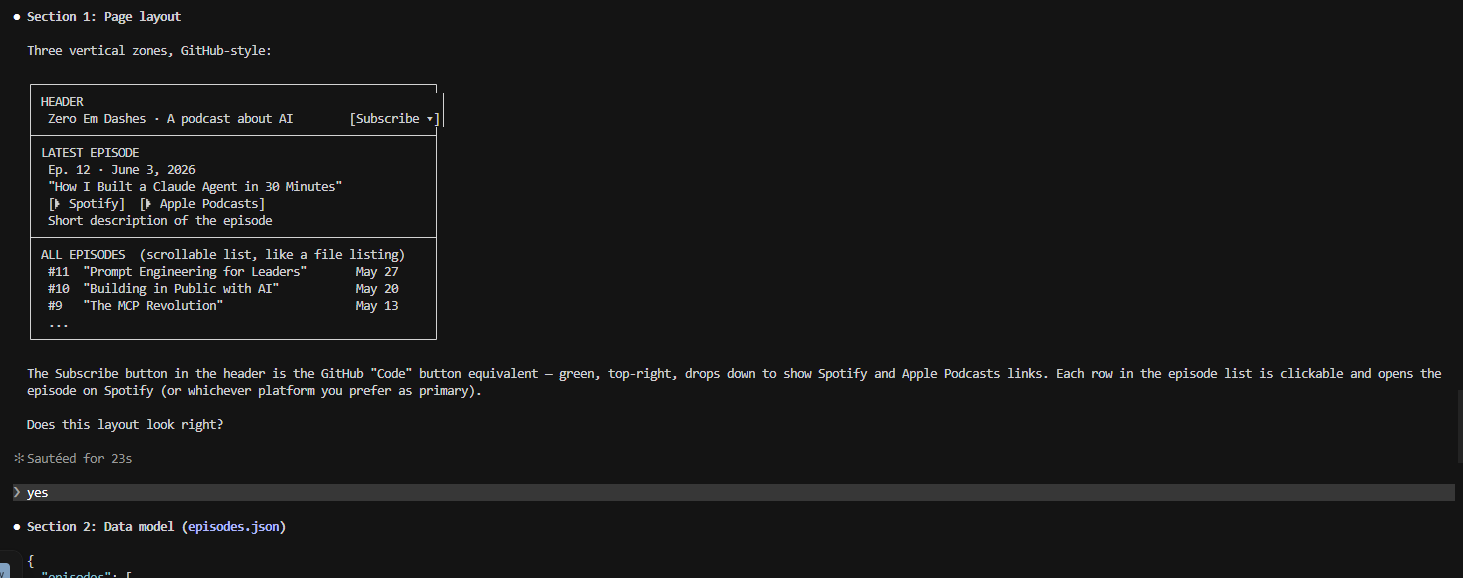
With the approach chosen, Claude presents the full design of your site section by section. For each section it will ask: does this look right? You can approve it, ask for changes, or redirect entirely. Nothing gets locked in until you say so.
Step 4: Claude writes and reviews the design doc
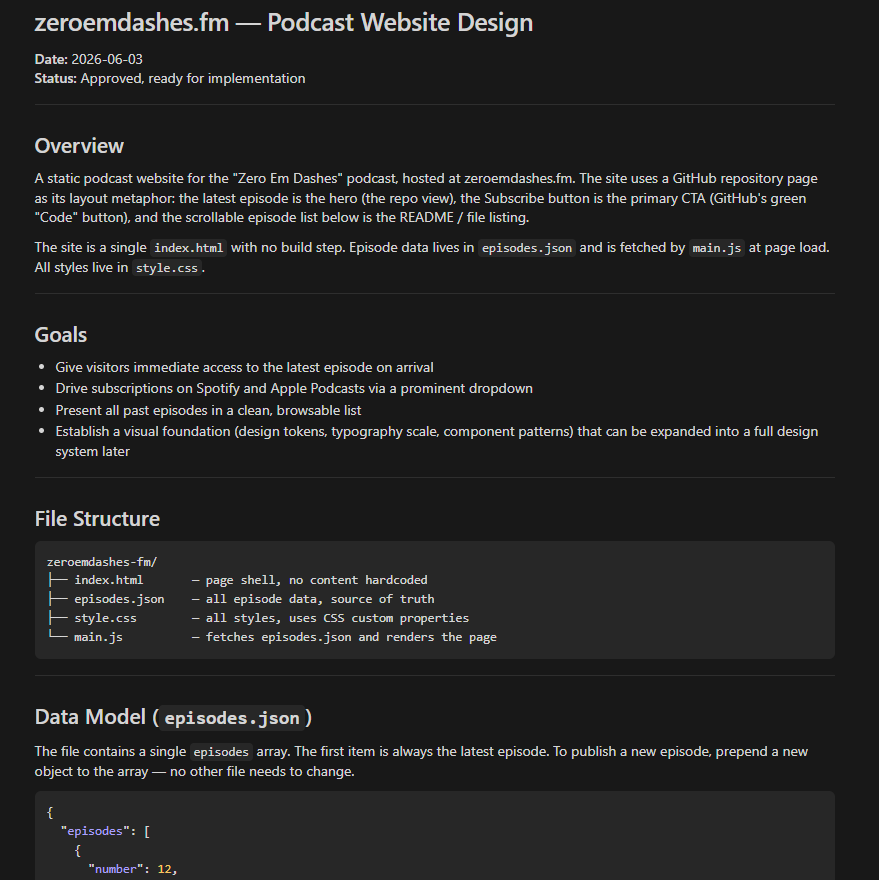
Once the design is approved, Claude writes it into a document and reviews it automatically. It checks for anything vague, contradictory, or missing. If it finds something, it fixes it before asking you to look at it.
Then it asks you to read the final document before anything gets built. This is your last easy chance to make changes. Read it, and only confirm when you recognize it as your site. Once you do, Claude writes the implementation plan.
Turn the design into a plan
Claude writes the plan automatically after brainstorming. Your job is to read it and confirm before anything gets built.
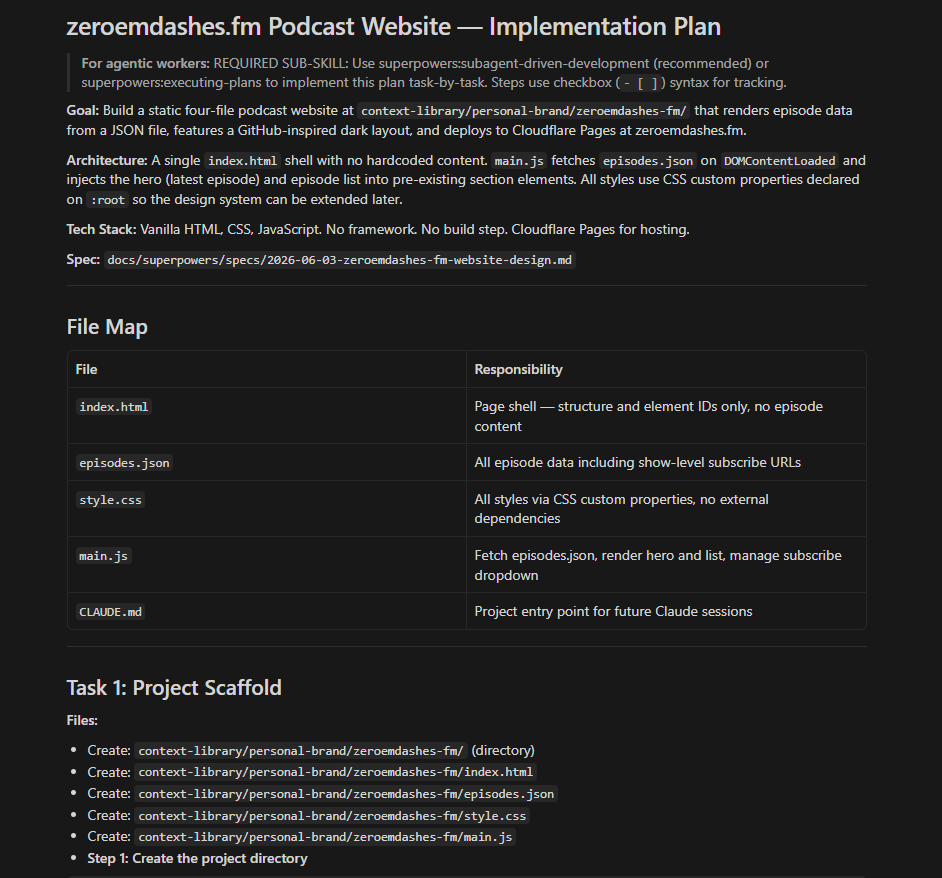
Once you approve the design document (the step shown at the end of section 2), Claude automatically transitions to writing the implementation plan. You do not need to ask for it. Claude takes everything from the conversation and turns it into a step-by-step list of what it is about to do: what files it will create, what goes in each section, in what order.
What a good plan looks like
A well-written plan is specific. Not "create the homepage" but "create index.html with a header containing your name and tagline, a two-column section for About, a list section for services, and a contact section with your email." Each item should be clear enough that you could hand it to someone else and they would know exactly what to build.
How to push back before building starts
Read the plan before Claude starts. This is your last easy moment to make changes. If a section is wrong, missing, or phrased in a way you do not recognize as your site, say so now. Changing the plan takes seconds. Changing the site after it is built takes longer.
What to check in the plan
Does the structure match what you described? Are the sections in the right order? Is anything missing that you mentioned during brainstorming? Is there anything in the plan you did not ask for? Approve the plan only when it matches what you actually asked for.
Claude builds it
Once the plan is approved, Claude works through it task by task. Your job is to review and give feedback.
Claude will go through the plan step by step, creating each file and section. After each major chunk, it will check in with you. You do not need to follow the technical details. Focus on what you see in the browser.
How to preview the site while Claude is building
Open the HTML file Claude is creating in your browser. As Claude makes changes and saves the file, refresh the browser to see the updated version. You do not need a server. A local file in a browser is enough to review during the build.
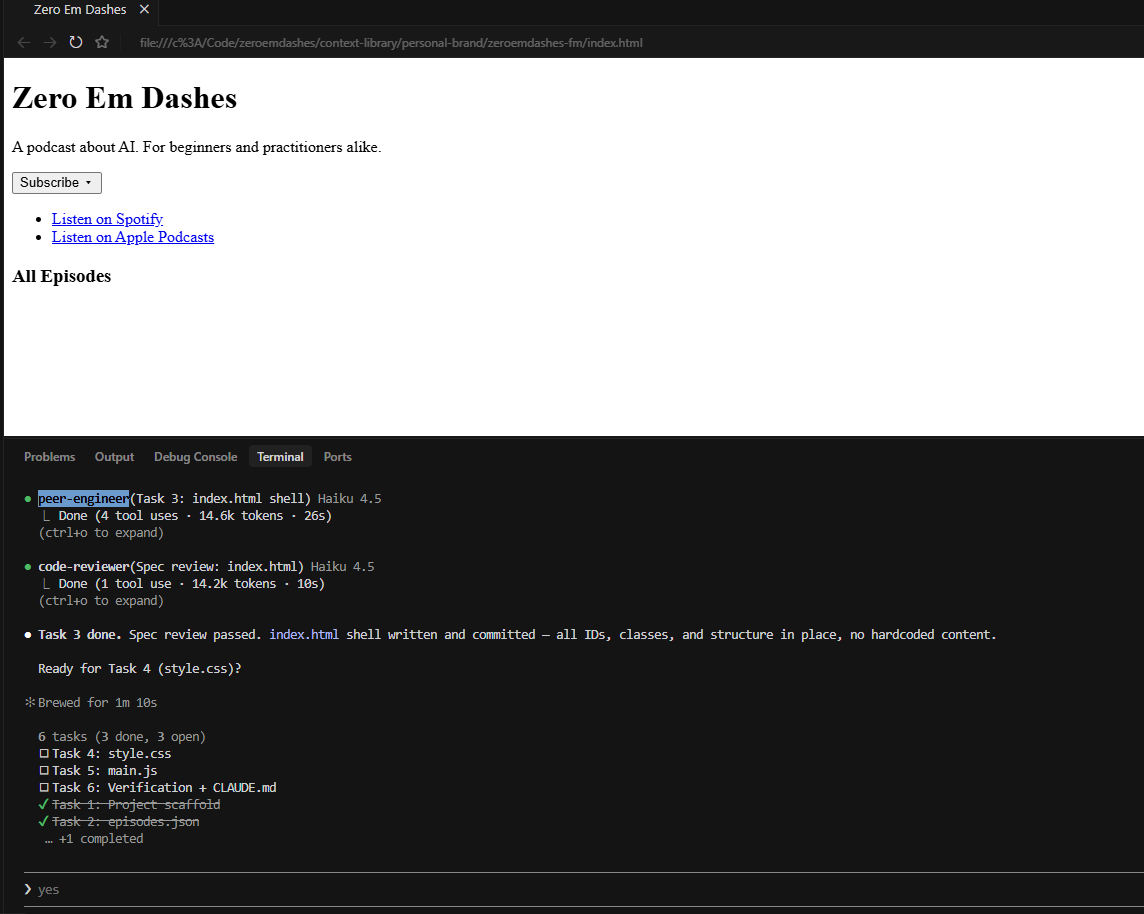
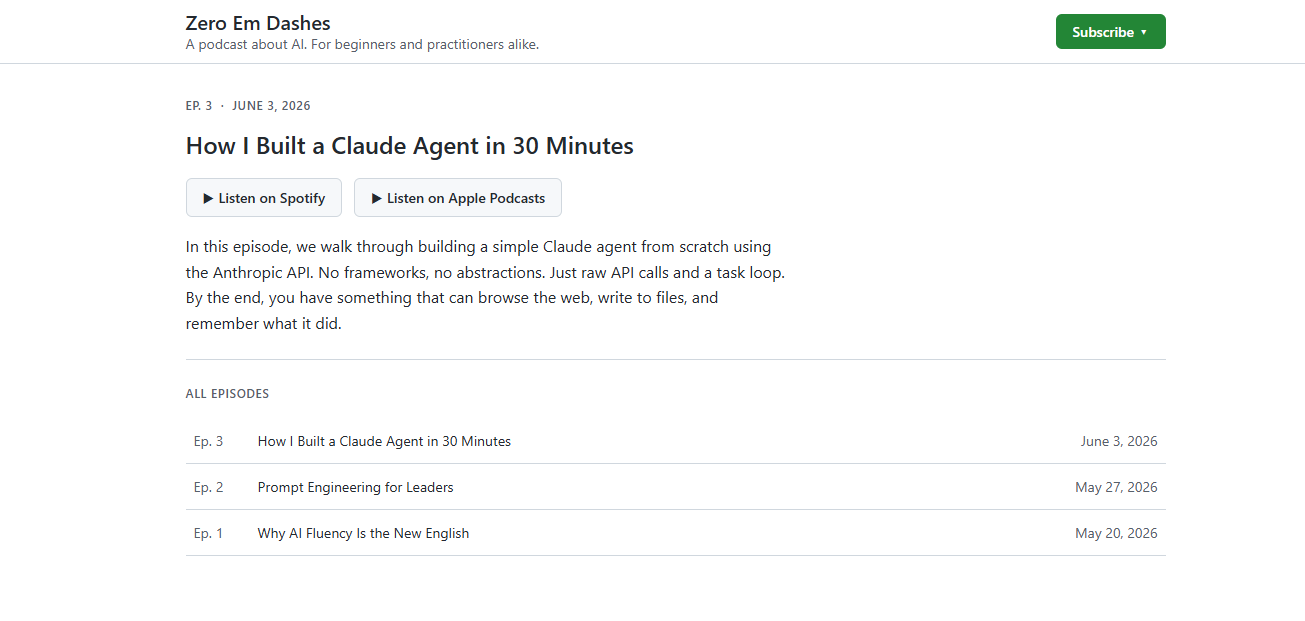
Mid-build, the site will look like this:
This is normal
Bare, unstyled HTML mid-build is not a problem. It means the structure is correct and Claude is working through the plan in order. The CSS comes in a later task. Once it lands, the site will look completely different. Do not give style feedback until the build is finished.
When you hate the first result
The first version will probably be functional but not exciting. That is expected. It is a starting point, not the finished product. Tell Claude what you do not like in plain language:
- "The header feels too generic. I want it to feel more personal."
- "The About section is too long. Cut it in half."
- "This does not look like me at all. Let's start the visual style from scratch."
Claude will adjust. Be direct. Vague feedback gets vague results.
When something breaks after a change
If the site looks broken after a change, do not try to fix it yourself. Tell Claude: "Something broke after that last change. The page is showing [describe what you see]. Can you fix it?" Claude can see the file and usually knows what went wrong.
The most useful phrase
"I like [X]. Keep that. Change [Y] to feel more like [Z]." Telling Claude what to preserve is as important as telling it what to change. Without it, a fix can accidentally undo something that was working.
Make it look like yours
This is what separates a site that looks like you from one that looks like every other AI-built page.
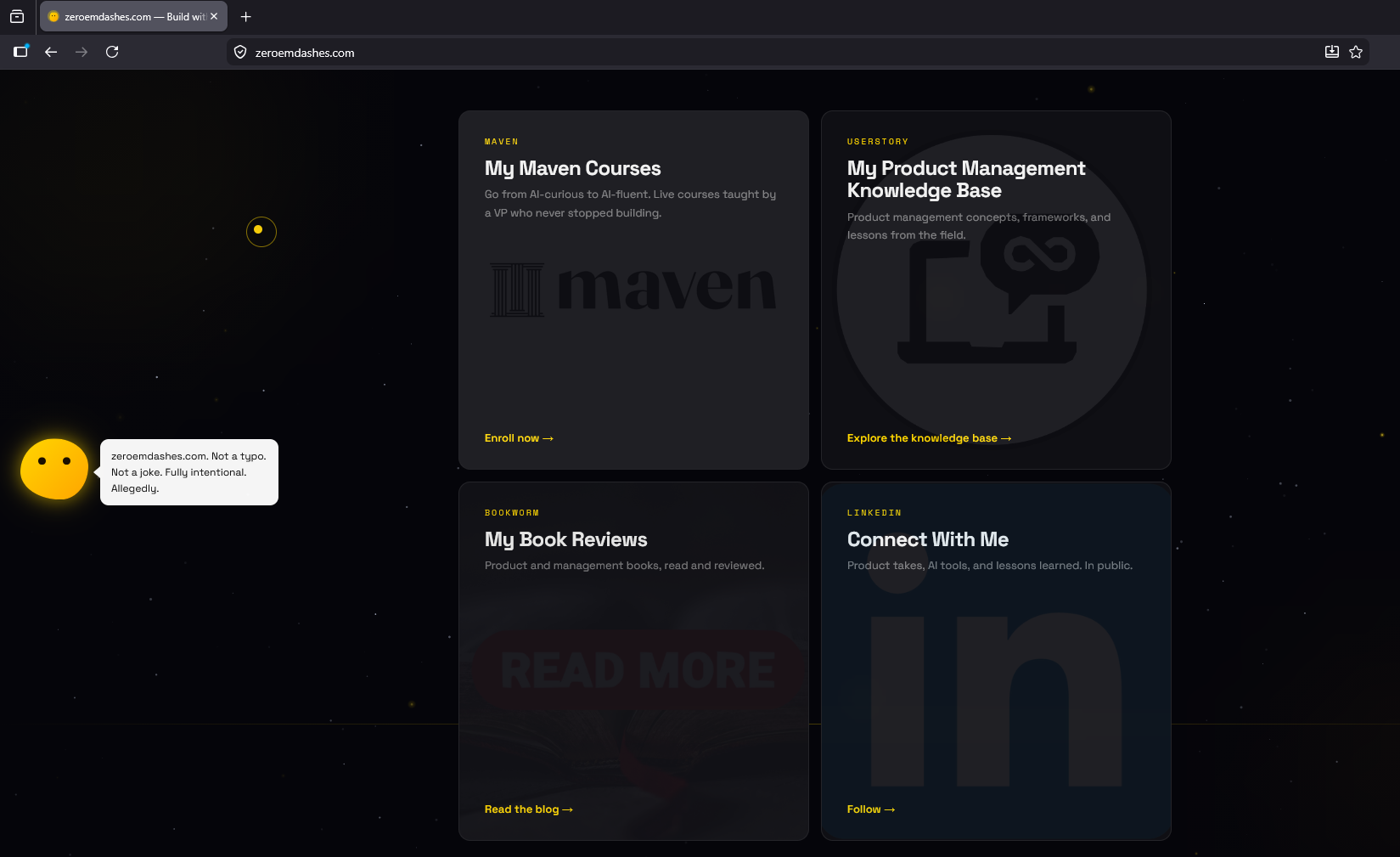
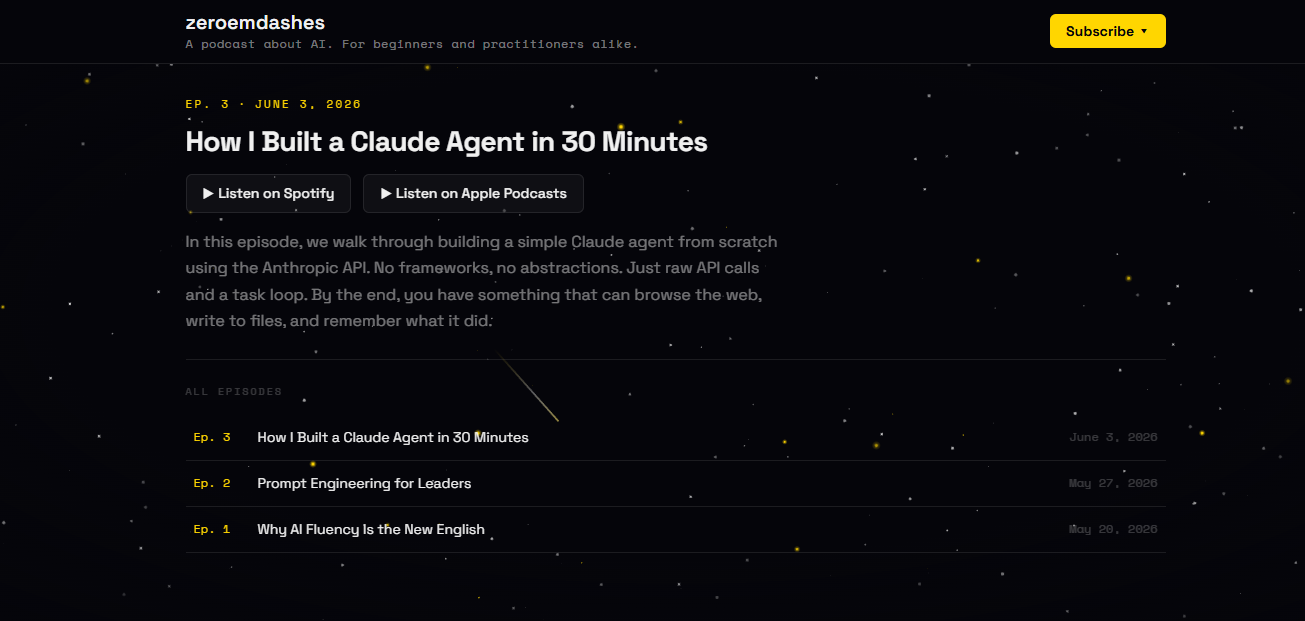
This is what the site looks like when Claude finishes the build. Correct, complete, and completely generic:
The next section shows what happens after one style prompt. Same content, different site.
Describe your visual style in one message
Write one message that describes the look you want. Do not worry about technical terms. Claude does not need you to know what CSS is. It needs to understand the feeling you are going for.
A good style description covers:
- Colors: dark or light background? One accent color or several? Any specific colors you already use elsewhere (in a logo, a LinkedIn banner, a portfolio)?
- Typography feel: clean and minimal? Bold and confident? Soft and approachable?
- Spacing: tight and dense or generous and airy?
- Personality: references help. "Like a high-end consulting firm." "Like a creative studio." "Like Apple's website but warmer."
Lock in the style before adding more content
Get the visual direction right before you build more pages or sections. It is much faster to apply a style to a small amount of content and then expand, than to rebuild a large site's appearance from scratch.
When the style drifts after changes
Sometimes after Claude makes a content change, the visual style shifts slightly. If this happens, tell Claude: "The style has drifted from what we had before. Can you restore the original look while keeping the new content?" If needed, ask it to write down the style rules in a separate file so they are never lost between changes.
Shortcut
The Claude Code Workspace Setup zip includes 100 pre-built design systems. Instead of describing a style from scratch, you pick one and tell Claude to apply it. Each design system is a ready-made visual identity. If you have the zip, ask Claude: "Show me the available design systems and let me choose one." Get it at maven.com/bojan-gasparovic/o/3a8c67.
Deploy on Cloudflare Pages
Your site is ready. Start with a manual upload. It takes two minutes and requires no setup. GitHub and Wrangler are covered after for ongoing updates.
Step 1: Create a Cloudflare account
Go to cloudflare.com and sign up for a free account. You will use this same account later when adding your custom domain.
Option A: Manual upload (start here)
No terminal, no GitHub, no configuration. Drag your files into Cloudflare Pages and your site is live on a pages.dev address in under two minutes.
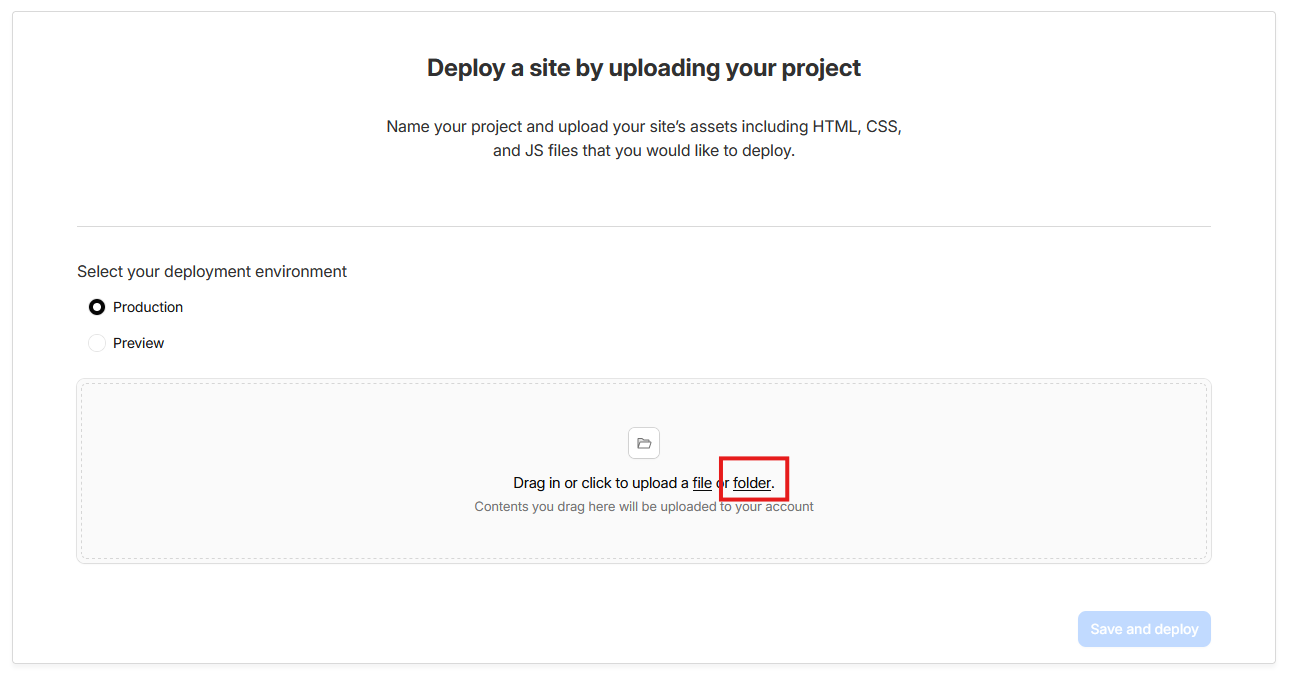
- In the Cloudflare dashboard, go to Workers and Pages and click Create application.
- Select Pages, then Upload assets.
- Give your project a name.
- Drag your site folder into the upload area and click Deploy site.
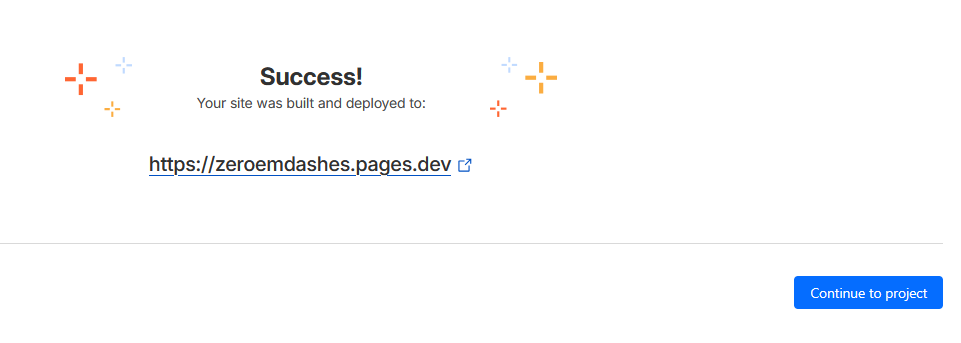
Your site is now live at a pages.dev address. This is a free URL Cloudflare gives every project, like yoursite.pages.dev. This is a real, working website address you can share. Later you will connect your own domain so it is reachable at your own address instead.
To update the site later, go back to your Pages project, open the Deployments tab, and upload the new files.
Option B: Wrangler CLI (how I do it)
Wrangler is Cloudflare's command-line tool. It lets you deploy with a single terminal command. This is the method I use for zeroemdashes.com.
Let Claude do this for you
You do not need to type any of the commands below. Just tell Claude what you want and it will handle the terminal for you:
- To install: "Install Wrangler so I can deploy to Cloudflare Pages."
- To deploy: "Deploy my site to Cloudflare Pages."
The commands are shown below for reference, but Claude can run them directly.
Prerequisite: You need Node.js installed. Download the LTS version from nodejs.org. It includes npm.
Install Wrangler:
npm install -g wrangler
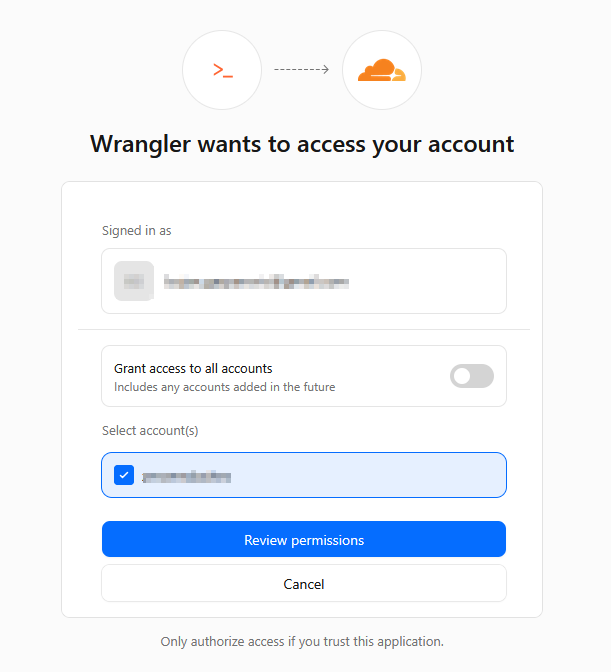
Once Wrangler is installed, log in to your Cloudflare account. This step you do need to run yourself. It opens a browser window to authorize the connection.
Log in to Cloudflare:
wrangler login
Deploy your site:
wrangler pages deploy . --project-name=your-project-name
Replace your-project-name with the name you want for the project. The first time you run this, Cloudflare creates the project automatically. Every time after that, the same command deploys the latest version.
Option C: Connect to GitHub
If you have a GitHub account and your site files are in a repository, you can connect it to Cloudflare Pages. Every time you push a change to GitHub, your live site updates automatically. In Cloudflare Pages, choose Connect to Git, authorize access, select your repository, leave build settings blank, and deploy. This guide does not cover GitHub setup — start with Option A and add GitHub later if you want the automated workflow.
Which option to use
Start with Option A to get live fast. Switch to Option B or C once you are making regular updates and want a faster workflow. All three end at the same result: your site live on a pages.dev address.
Buy your domain
Your domain is your address on the internet. Buy it directly through Cloudflare and DNS is configured automatically. No extra steps needed.
Already have a domain on GoDaddy or another registrar?
Go to Domains in your Cloudflare dashboard, click Add domain, and choose Connect. Cloudflare will show you two nameservers. Log into your registrar, find the nameserver settings, and replace the existing ones with Cloudflare's. DNS (the system that tells the internet where your domain lives) propagation takes up to 24 hours. Once it completes, skip to Section 8.
Step 1: Pick your domain name
A few things to consider before you search:
- Keep it short. Your name, your name plus a word, or a phrase that represents what you do.
- Go for .com if available. It is still the most recognized extension. If it is taken, .io, .co, and country-specific extensions (.es, .de, .fr) are all fine.
- Avoid hyphens. They are hard to say out loud and easy to forget.
- If you are stuck, ask Claude for 10 name suggestions based on what your site is about.
Step 2: Buy through Cloudflare
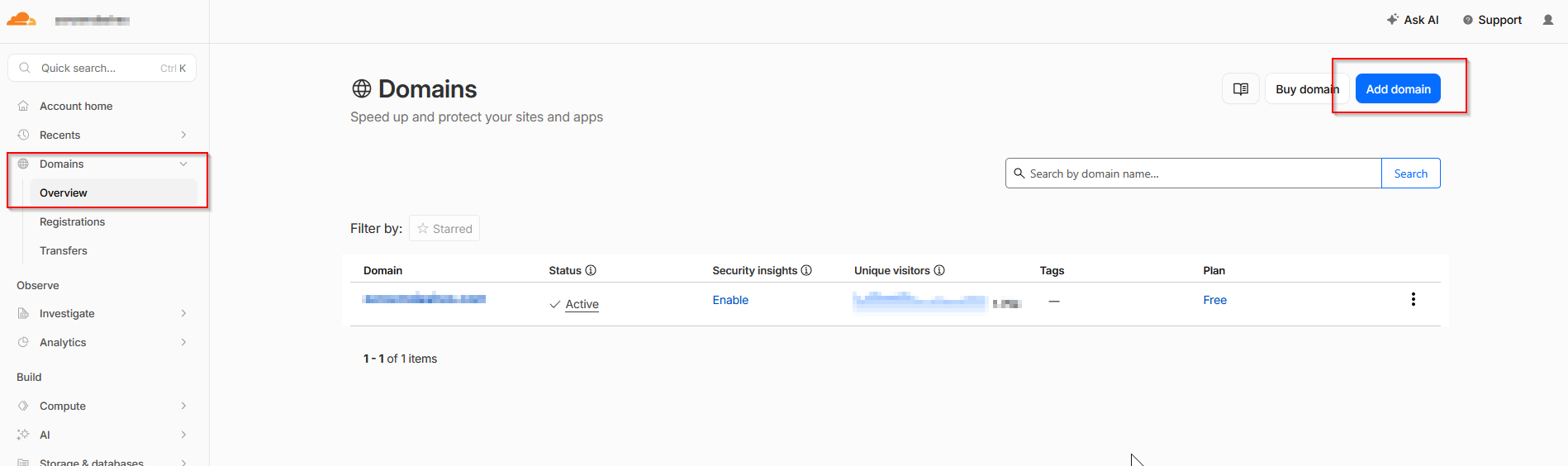
In your Cloudflare dashboard, go to Domains in the left nav and click Add domain.
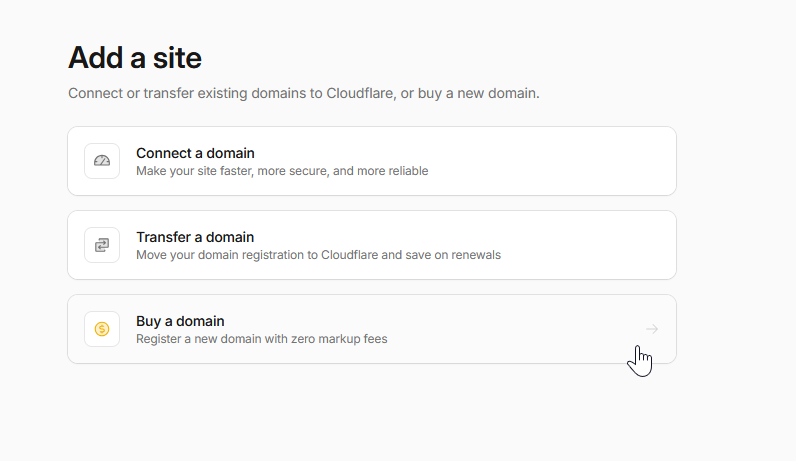
Cloudflare will show three options. Choose Buy a domain. Search for the name you want.
If a result shows a price in the hundreds or thousands, it is a premium domain. Skip it and try a different name. A standard registration costs around €10-15 per year.
Step 3: Complete the purchase
Cloudflare sells domains at cost with no markup, so the price is typically lower than other registrars. Watch the renewal price. The first year may be discounted, but the renewal is what you will pay every year after.
Complete checkout. Your domain is now in Cloudflare and DNS is already configured. No nameserver changes needed. Move straight to Section 8.
Add your custom domain
Your site is live on a pages.dev address. Now you connect your own domain so it is reachable at your address.
Step 1: Open your Pages project in Cloudflare
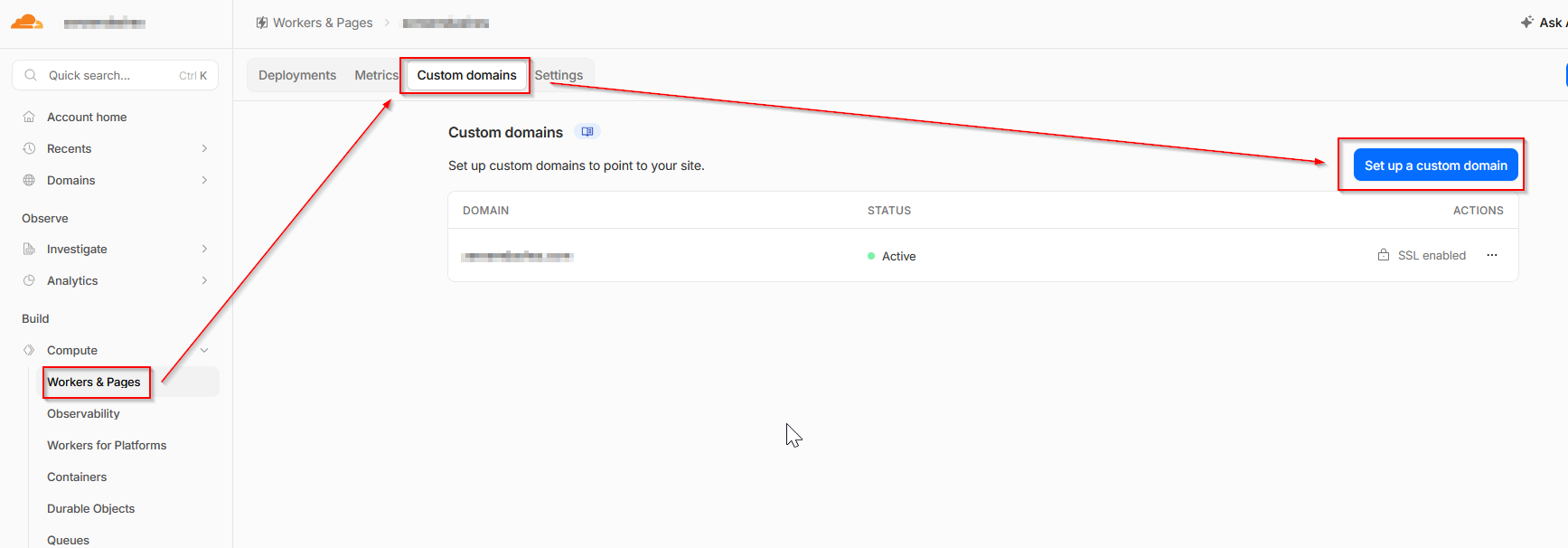
In your Cloudflare dashboard, go to Workers and Pages and click on your project. Open the Custom domains tab.
Step 2: Click Set up a custom domain. Enter your domain name (for example, yourname.com) and click Continue.
Step 3: Because your domain is already in Cloudflare, it connects automatically. Click Activate domain. Within a few minutes the domain shows a green Active status. No DNS configuration needed.
You are live
Open a browser and go to your domain. Your site is on the internet. You built it with plain language conversations. You own the domain. The hosting is free. From here, every update is a conversation with Claude followed by a quick deploy.
When things go wrong
Ten common stuck points and how to get past them.
Claude and the workflow
1. You hate the first build
This is normal. Do not try to fix it piece by piece. Tell Claude: "This is not the direction I want. Let's reset the visual style. Keep the structure and content, change everything about how it looks." Then describe the feeling you are going for. It is faster to restart the style than to patch it.
2. The style is inconsistent across sections
Ask Claude to write the style rules into a dedicated section at the top of the file (a style block). Once the rules are written down explicitly, Claude can reference them instead of guessing. Tell it: "Write the current style rules as a style block at the top of the file. Then re-apply them consistently to every section."
3. Claude changed something you wanted to keep
Tell Claude exactly what changed and what you want restored: "The [section name] looked right before the last change. Can you restore it to what it was while keeping the new [specific thing]?" If you are using Git, you can also ask Claude to check the previous version of the file.
4. The plan went off track
If Claude has gone somewhere you did not expect, stop it. Say: "Let's pause. I want to review the original plan and make sure we are still on track." Reread the plan together and realign before continuing. Do not keep building on a foundation that is heading the wrong way.
5. Claude lost track of what you were building
Long conversations can cause Claude to lose context. If responses start feeling generic or inconsistent with earlier decisions, start a new conversation. Paste in the design document from the brainstorming session to re-establish context, then continue from where you left off.
Publishing and infrastructure
6. Site is not showing after deploy
Wait two to three minutes and hard-refresh the browser (Ctrl+Shift+R or Cmd+Shift+R). If it still does not show, check the Deployments tab in your Cloudflare Pages project. Look for any error messages in the most recent deployment log.
7. Custom domain not resolving after activation
If you bought the domain through Cloudflare, DNS should configure automatically. If it has not resolved after 10-15 minutes, go to your Pages project, open the Custom domains tab, and check the status. If it shows pending, click the three dots next to the domain and choose Retry. If the domain is from another registrar, DNS propagation can take up to 24 hours after the nameserver change.
8. Domain purchase not completing in Cloudflare
Cloudflare Registrar requires a verified payment method and a valid contact address. Check that both are filled in under Account home. Some domains (especially country-specific extensions) have eligibility requirements. If a domain is rejected, try a .com or .io instead.
9. Cloudflare Pages build failed
Click on the failed deployment in Cloudflare Pages and read the error log. For a plain HTML site, the most common cause is an empty repository or a missing index.html file. Make sure your main file is named exactly index.html and is in the root of your repository.
10. Custom domain showing as inactive in Cloudflare
In your Pages project, open the Custom domains tab and check the status next to your domain. If it shows pending or inactive, click the three dots and choose Retry. If it still does not activate, describe the exact status message to Claude and ask it to walk you through the fix.
For anything not on this list
Describe the problem to Claude in plain language. Include what you were trying to do, what you expected to happen, and what happened instead. Claude can walk you through most issues on demand, including reading error messages and suggesting fixes step by step.
Want to do this together?
Skip the solo setup.
Do it live with me.
In a private 3-hour session, we build your site together from scratch. Brainstorm, plan, build, style, deploy, custom domain. You leave with it live and the workflow to keep going yourself.
Book at maven.com
maven.com/bojan-gasparovic/build-your-website
Private workshop, €349