
AntiTap app icon

AntiTap: Touch Lock

Lock the screen so taps and buttons do nothing. The video call or cartoon keeps playing. Hand your phone to someone, and nothing gets pressed by mistake.

Get it on Google Play
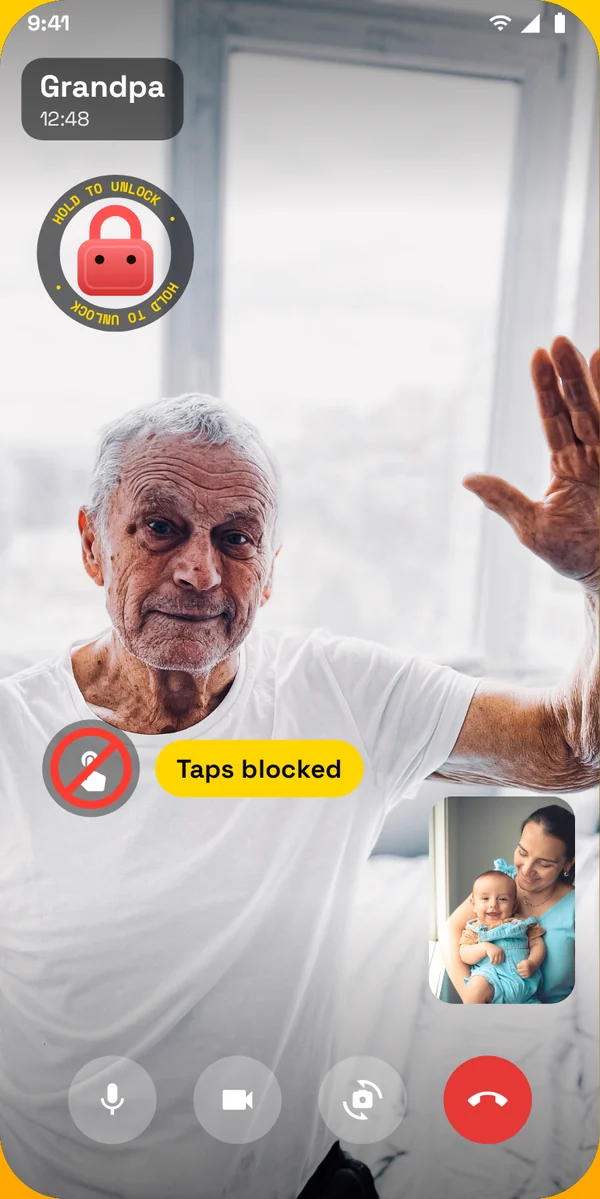
A video call with the screen locked and taps blocked 01

The call keeps going.

Lock the screen during a video call. The call, the camera and the microphone keep working. The volume buttons stay blocked, so nobody mutes the call.

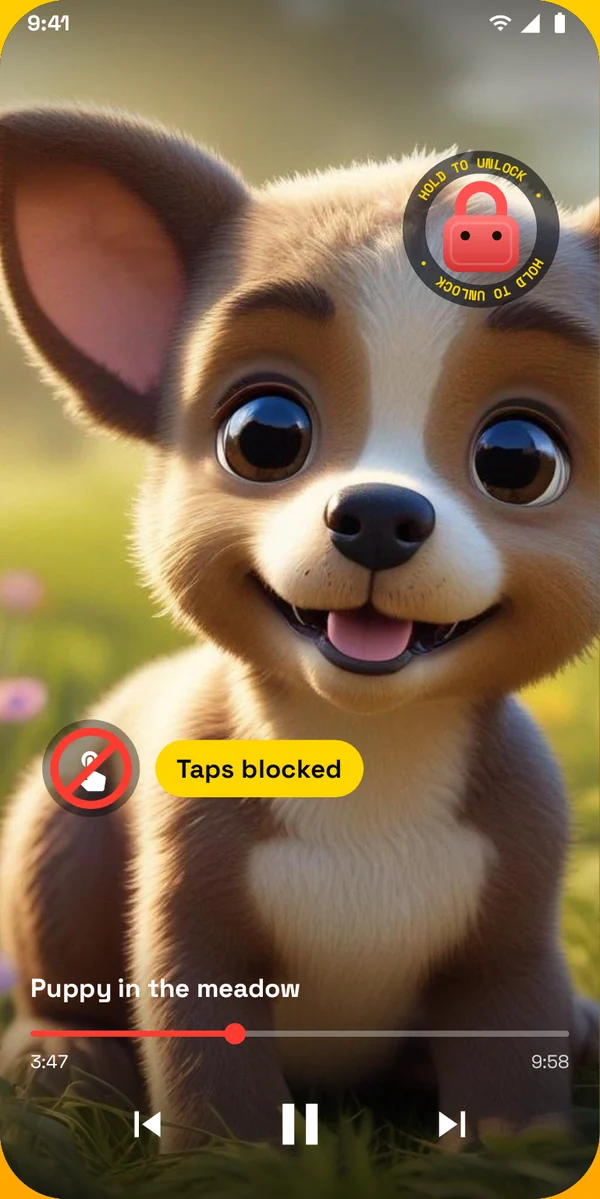
A cartoon playing with taps blocked 02

Cartoons keep playing.

Taps, swipes and buttons do nothing, so no video gets skipped or closed. Each tap shows a small yellow burst instead.

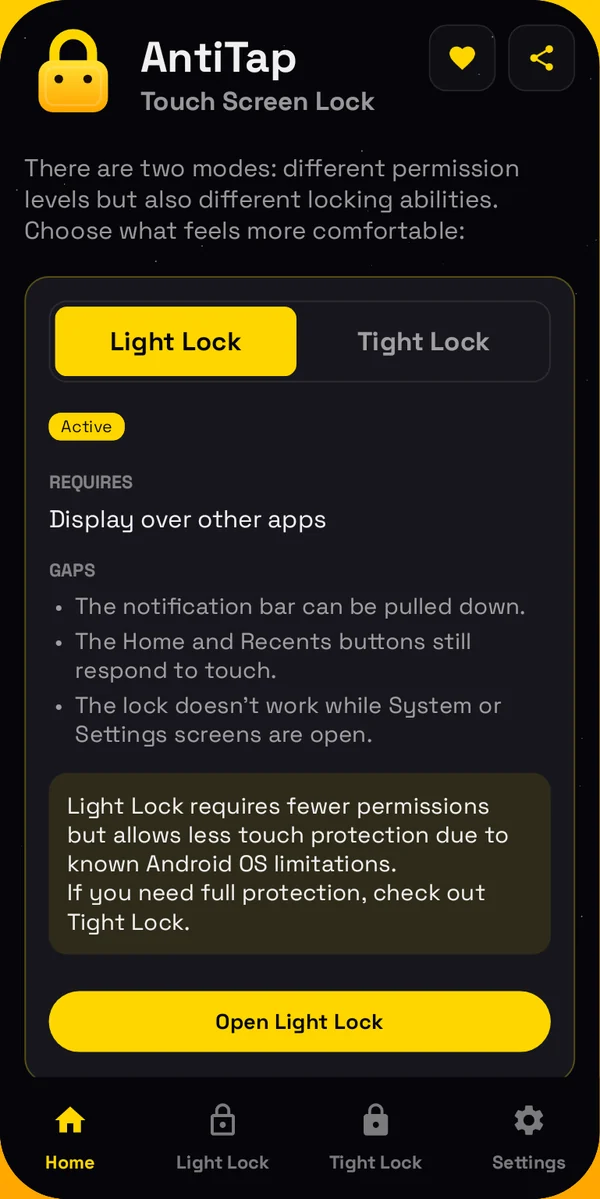
AntiTap home screen with Light Lock and Tight Lock 03

Two locks. You choose.

Light Lock needs one simple permission and blocks taps, back and volume. Tight Lock also blocks the notification shade, Home and Recents.

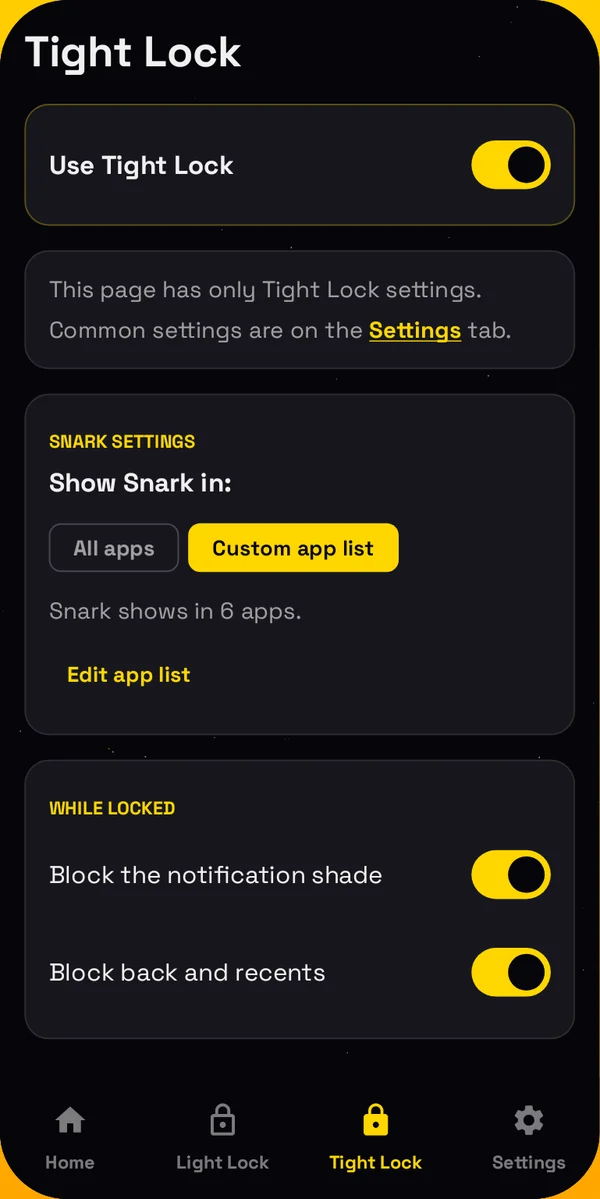
Tight Lock settings with a custom app list 04

Lock only the apps you pick.

With Tight Lock, the lock button shows in every app, or only in the apps you choose. If someone gets out anyway, AntiTap brings the app back.

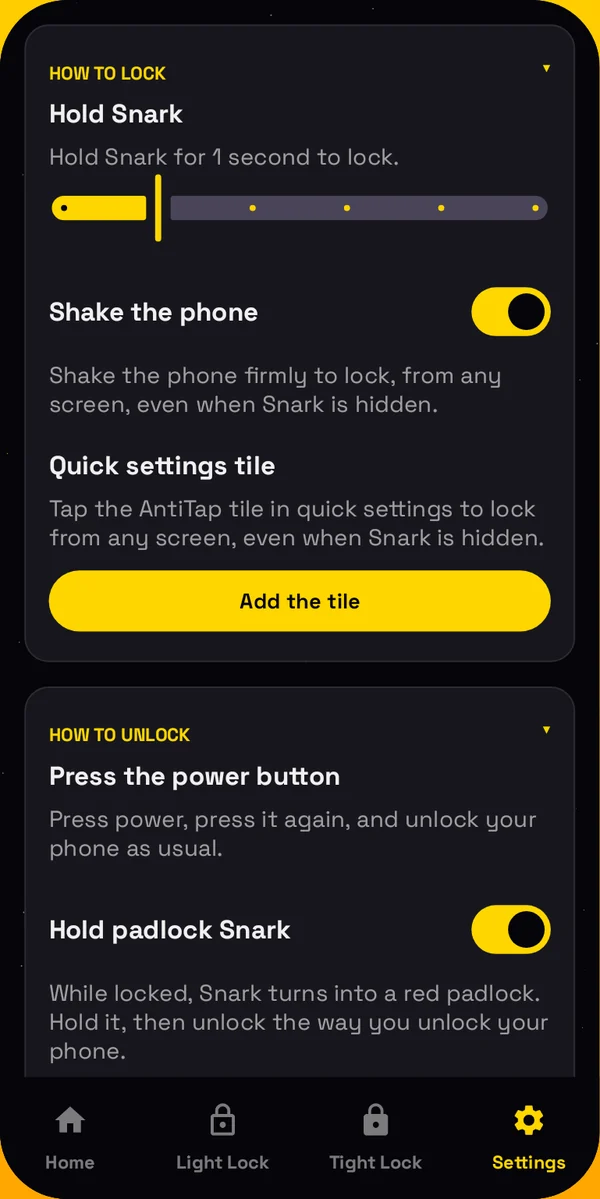
AntiTap settings for how to lock and unlock 05

Lock and unlock your way.

Hold the lock button for one second, shake the phone, or tap the quick settings tile. To unlock, use your phone's own lock: fingerprint, face or PIN.

Questions
Does the video call keep going?

Yes. AntiTap only covers the screen. The call, the camera and the microphone keep running underneath.

Can someone else unlock it?

Unlocking needs your fingerprint, your face or your phone's PIN. If your phone has no screen lock, AntiTap asks you to hold two marked spots for three seconds instead.

Which lock should I use?

Start with Light Lock: one mild permission, and it covers taps, back and volume. Switch to Tight Lock if someone finds a way out, or if you want the notification shade and Home blocked too.

Is there a time limit?

No. The touch lock lasts until you unlock it.

Does it need the internet?

No. Locking and unlocking work offline.